
How to use Gemini for research is something I get asked about a lot, usually right after someone has received a polished answer that they couldn’t quite trust, even though it sounded confident. I’ve been there more than once, and it usually isn’t the tool’s fault, because the question was too loose and nobody checked the result afterward. This guide gives you a simple six-step workflow for using Gemini for research, starting with how to write the question and ending with how to check the final summary. You don’t need any technical background, just a Google account and a topic you want to understand.
How to Use Gemini for Research: What Can It Actually Do?
Gemini is Google’s AI assistant, and for research it handles three jobs: it finds and reads sources, it pulls out the important points, and it turns those points into a summary you can actually use. Think of it as a fast research assistant who reads everything you hand over but needs clear instructions to do it well. If you say “look into solar panels,” you’ll get something vague, and if you say exactly what you need and who it’s for, you’ll get something far more useful.
What makes Gemini different from a basic chatbot is its connection to Google, since it can search the web, read files you upload, and, if you allow it, look inside your Gmail and Drive. So the quality of your research depends a lot on what you point it at, and on how clearly you describe the job. The takeaway is simple: Gemini does the reading, and you decide what matters.
Which Gemini Mode Should You Use?
Before you learn how to use Gemini for research in detail, it helps to know that Gemini gives you two main ways to work, and picking the right one saves a surprising amount of time. A normal chat works best for quick jobs, like summarizing a single article or asking a follow-up question about something you’ve already read. Deep Research is built for bigger jobs, where you give Gemini a topic and it writes a research plan, searches many sources, and hands back a full report. Google’s Deep Research help page says a report usually takes about five to ten minutes.
A normal chat is like asking a coworker a quick question across the desk, while Deep Research is like handing them a project and getting a report back after lunch. Neither mode is better in every situation, so the real skill is matching the mode to the size of the job you’re trying to finish. Menu names and buttons change often, so if your screen looks a little different from what I describe, look for the Deep Research option near the text box.
How to Use Gemini for Research: The 6-Step Workflow
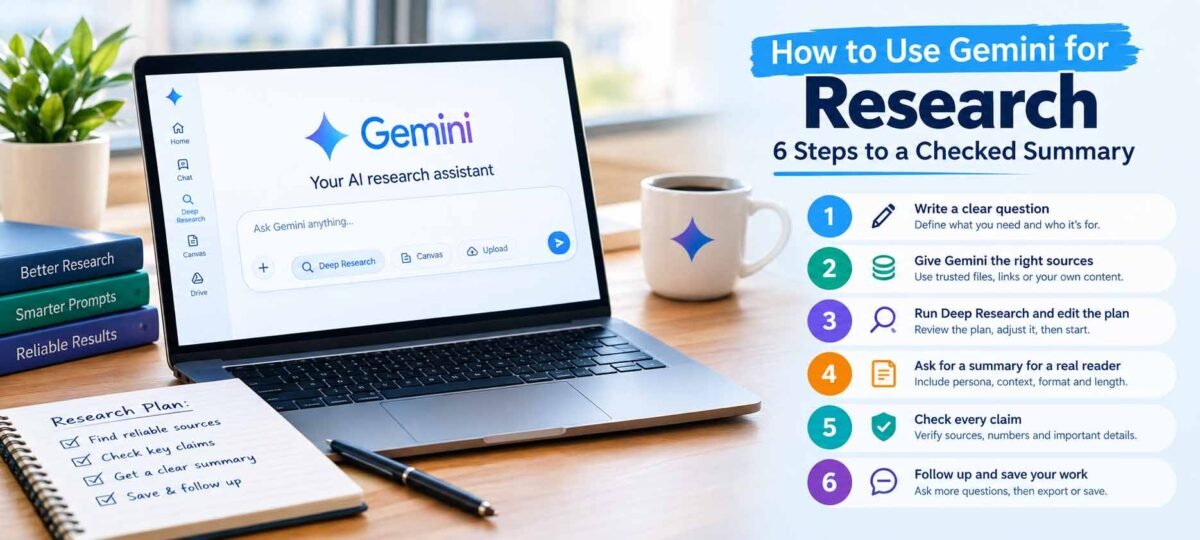
Here’s the order I’d follow every time I show someone how to use Gemini for research, and each step is small enough to finish in a few minutes. Skipping one is where most weak summaries come from, so it’s worth running through all six, at least until the habit sticks. None of them is difficult, and after a couple of tries the whole routine starts to feel automatic, much like following a recipe you’ve cooked a few times before.
Show Image
Step 1: Write the Question Before You Open Gemini
Most weak research starts with a weak question, so before you type anything, decide what you want to know, who the result is for, and what you plan to do with it. Write those three things down in a sentence or two. It’s like telling a cab driver the actual address instead of saying “take me somewhere nice,” because the driver can’t get you there without knowing where “there” is.
Bad Example: “Tell me about remote work.”
Better Example: “Act as a research assistant. I’m writing a short report for small business owners. Explain what recent research says about remote work and productivity, list the three strongest findings, and note where studies disagree.”
The better version gives Gemini a reader, a job, and a shape for the answer, and that’s really all a good research question needs. Spend two minutes on this step and every step after it gets easier, which is a trade I’ll take every time, because a clear question also makes the final summary much easier to judge. If you only change one thing about how to use Gemini for research, I’d make it this one.
Step 2: Give Gemini the Right Sources
Gemini can only work with what it can see, so your sources matter just as much as your question does. Sources are the ingredients, and even a great cook can’t rescue a dish made from bad ones. I’d suggest starting with two or three sources you already trust, because it’s much easier to check a summary when you know exactly what went into it. If you like prompts that stay strictly inside your own material, Notebook Toolkit’s list of source-grounded Gemini Notebook prompts is worth a browse.
There are a few ways to hand Gemini your material:
- Upload files: Use the attach option in the chat box to add a PDF, your notes, or a section of a textbook, then ask for a summary or the key points.
- Pick sources in Deep Research: Before you start, you can choose sources like Gmail or Drive, and you can turn off Google Search if you want Gemini to stick to the sources you selected.
- Use the @ symbol in Workspace: Inside Google Docs and similar apps, typing “@” lets you point Gemini at a specific Drive file instead of describing it.
- Paste short text: For a single article, pasting the text straight into the chat is often the fastest route.
- Add meeting transcripts: Transcripts make surprisingly good research material, and Tactiq’s guide to using Gemini for AI research shows how to turn them into inputs.
Step 3: Run Deep Research and Edit the Plan
When you’re learning how to use Gemini for research on a bigger topic, Deep Research is where Gemini really earns its keep, and the order matters here, so follow it as written:
- Go to gemini.google.com and choose Deep Research from the options near the text box.
- Type your research question from Step 1.
- Read the research plan that Gemini writes for you.
- Click Edit plan and change anything that’s off.
- Click Start research, then wait while Gemini works through its sources.
Don’t skip the plan. Explore AI Together makes the same point in its beginner’s guide to Gemini Deep Research, and I agree with it. I always read the plan first, since it’s the cheapest place to fix a wrong direction, and it saves you from waiting ten minutes for a report on the wrong topic. It’s like checking the route on your map app before you start driving, not after you’ve missed the turn.
Bad Example: “Looks good.”
Better Example: “Remove the section on pricing, add a section on risks, and only use sources from the last three years.”
Specific edits tell Gemini exactly what to change. They keep the final report focused on what you actually need instead of what Gemini guessed you might want. Vague approval, on the other hand, just sends the original plan straight through, flaws and all, so a few seconds of editing here pays off later.
Step 4: Ask for a Summary Built for a Real Reader
Once the research is done, the summary is where detail tends to get lost, usually because the request was too short. Google’s Prompting Guide 101 for Workspace, which 9to5Google covered in detail, teaches a simple framework: Persona, Task, Context, and Format. Persona is who Gemini should act as, task is the job you want done, context is the background it needs, and format is the shape of the answer. You don’t need all four every time, but the more you include, the less Gemini has to guess.
Bad Example: “Summarize this.”
Better Example: “Act as a research assistant. Summarize the attached study for a first-year college student. Keep it under 120 words, use plain language, and end with one sentence on why it matters.”
The better version names a reader, a length, and an ending, which is nearly everything a summary needs. In my experience, a word count and a specific reader improve a summary more than any other single change, and it takes about ten seconds to add them. If you want ready-made versions, our list of Gemini prompts for research and summaries has twelve you can copy and adjust, and Techpresso’s collection of 30 Gemini research prompts is a good second source if you want more to choose from.
Step 5: Check Every Claim That Matters
Here’s the step most guides on how to use Gemini for research skip, and it’s probably the most important one on this list. Gemini can sound completely sure about a detail that isn’t in your sources, and the wrong parts read exactly like the right parts, so you can’t spot them by tone alone, no matter how carefully you read. Treat a Gemini summary like a friend’s retelling of a movie: it’s great for the gist, but you’d check the details before repeating them.
A few habits catch most problems:
- Ask for a source on every claim: Add “cite the source for every claim” to your prompt so you can trace anything back later.
- Open the original for numbers: If a summary includes a statistic, a date, or a quote, confirm it in the real source before you use it anywhere that matters.
- Ask Gemini to mark its guesses: A prompt like “mark anything you inferred instead of read directly” catches more than you’d expect.
- Compare with a second source: If a claim is important, find it somewhere else before you rely on it.
Here’s a prompt to try: “For each claim in your summary, tell me which source it came from, and flag anything you inferred.” It takes seconds to add, and it turns a smooth-sounding summary into something you can actually verify, one claim at a time. It also makes the checking step far less tedious, since you’ll know exactly which source to open for each point. If you want to see how prompts like this are built, our guide to advanced prompting techniques in AI covers the thinking behind them.
Step 6: Follow Up, Then Save Your Work
Your first answer is rarely your best one, so stay in the same chat and keep asking, since Gemini remembers what you’ve already covered. Good follow-ups are short and specific, like “What’s the strongest argument against this?” or “What important questions do these sources leave unanswered?” Each one pushes the research a little further and often shows you a gap you hadn’t noticed, which is exactly the kind of thing a single prompt can’t do. I find the best insights usually come from the third or fourth question, not the first. That’s really the heart of how to use Gemini for research: ask, check, and ask again.
When you’re happy with a report, you can share, export, or copy it from the chat. One thing worth knowing is that Google says you can only find past Deep Research reports later if your Keep Activity setting is turned on. So if you want to come back to a report next week, check that setting first, or export the report right away.
One Prompt That Covers the Whole Workflow
If you want a single starting point for how to use Gemini for research, copy this and fill in the brackets: “Act as a careful research assistant. I’m researching [topic] for [reader] so they can decide [what]. Use only [the attached files or the sources I list]. First, give me a short research plan and wait for my approval. Then summarize the findings in [word count] words, cite the source for every claim, and mark anything you inferred. End with three questions the sources don’t answer.”
It’s long, but every sentence does a job, and you can trim whatever you don’t need for a smaller task. Think of it as a checklist you only have to write once. If you’d like longer, more formal versions for reports, PromptBuilder has a set of research prompt templates for Gemini that you can compare against this one. The plan step gives you control, the citation step gives you something to check, and the last line shows you what’s still missing from your sources.
Common Mistakes When Using Gemini for Research
I see the same handful of slip-ups again and again when people are learning how to use Gemini for research, and all of them are easy to fix once you know what to look for. Usually it takes just one extra sentence in your prompt or one extra minute of checking. Here are the five I’d watch for first.
- Asking a vague question: “Tell me about X” gets a generic answer, so give Gemini a reader and a goal instead.
- Skipping the research plan: Starting Deep Research without reading the plan means you can’t fix a wrong direction early.
- Trusting citations without opening them: Treat every named source as a lead to confirm, not as a confirmed fact.
- Forgetting the reader and length: A summary for a CEO and a summary for a classmate should look different, so say which one you need.
- Mixing research and summary in one step: Finish the research first, then ask for the summary, so each step gets Gemini’s full attention.
FAQ: How to Use Gemini for Research
What’s the easiest way to learn how to use Gemini for research? Start with one small topic and follow the six steps above in order, beginning with a clear question and a short list of sources you trust. After one or two rounds, the routine becomes much quicker, and you’ll know which steps you can shorten for smaller jobs.
Is Gemini good for research? It’s a strong starting point for scoping a topic, finding themes, and drafting summaries, particularly when you give it clear sources. It works best when you also check the important claims yourself, since no AI tool is right every time.
How long does Deep Research take? Google’s help page says about five to ten minutes, though a bigger topic can sometimes take longer. You can keep working in other tabs while it runs, and Gemini will let you know when the report is ready.
Can Gemini summarize a PDF? Yes, you can upload the file with the attach option in the chat box and ask for a summary. For the best result, give it a set length and name the person who’ll read it, as in Step 4.
Is Deep Research free? Features and limits change often and can depend on your plan, so check Google’s current help page before you count on a specific limit. I’d rather point you there than give you a number that’s out of date next month.
Can I trust the sources Gemini gives me? Trust them as leads, not as proof. Open the original page for anything you plan to quote or build a decision on, because that’s the only way to know the detail is really there.
Conclusion: How to Use Gemini for Research With Confidence
You came here wondering how to use Gemini for research without ending up with an answer you can’t trust, and the workflow is shorter than it looks. Write a clear question, choose your sources, edit the plan, ask for a summary built for a real reader, check the claims, and keep asking follow-ups. Start small: try Steps 1 and 4 on your next topic, and add the others as they start to feel natural. If you also work with other tools, our guides to prompt engineering with ChatGPT and how to use Claude AI follow a very similar approach.
 TechPro Master