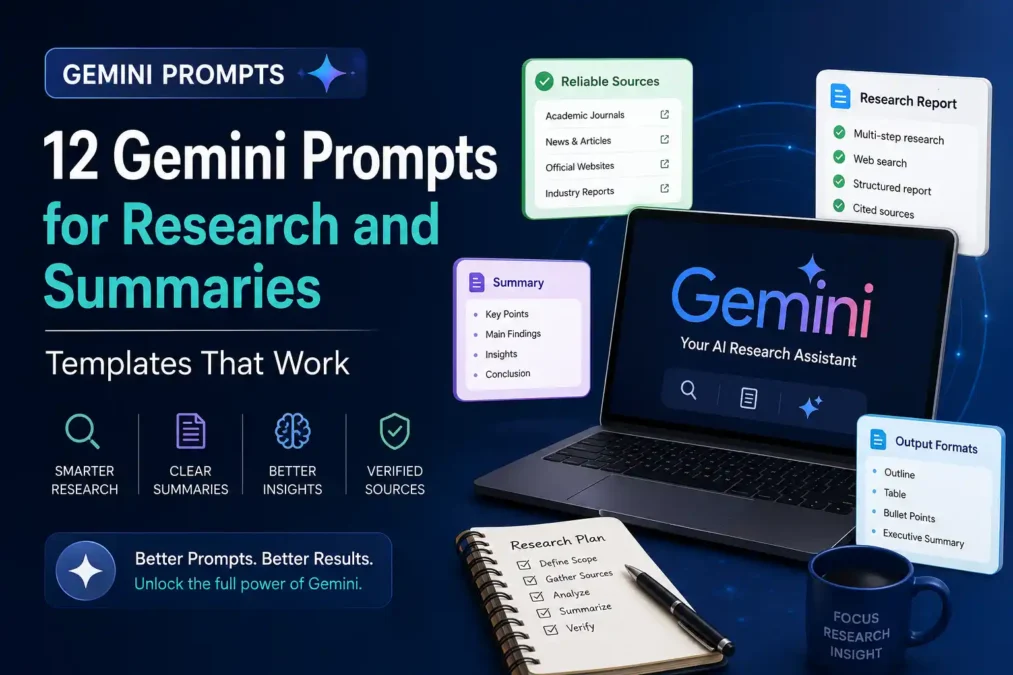

Ever paste a 40-page report into an AI chatbot and get back three vague paragraphs that could apply to almost anything? I’ve done that more times than I’d like to admit, and it usually means the prompt was the problem, not the model. Google Gemini is genuinely strong at research and summaries once you know how to ask it the right way, and that’s exactly what this guide walks you through. Below are 12 Gemini prompts for research and summaries that I actually use, plus a verification step most guides skip completely.
Why Gemini Works So Well for Research and Summaries
Gemini’s biggest edge over a lot of other AI tools is its context window, which is just a fancy way of saying how much text it can “hold in its head” at once. Think of it like the difference between someone skimming a single page and someone who has read the whole book and can flip back to check a detail. Gemini can hold hundreds of pages of source material in one conversation, so when you’re running research and summaries across multiple documents, it doesn’t lose track of what you gave it three messages ago.
It also has a feature called Deep Research, which plans out a multi-step research task, searches the web, and hands back a structured report complete with sources. That’s a different mode from just chatting with Gemini, and Google’s own guidance on structuring prompts makes clear that giving the model a clear task and enough context changes the output more than almost anything else you can do. Picking the right mode for your research and summaries work matters more than most people realize, so let’s cover that first.
Three Gemini Modes for Research and Summaries (Pick the Right One)
Before you touch a single prompt, it helps to know which “version” of Gemini you’re actually talking to, because each one behaves differently.
- Quick chat mode: best for summarizing something short, like one article or a couple of pages you paste in directly.
- Thinking mode: slower and more careful, good for comparing sources or working through a research question that needs actual reasoning instead of a fast answer.
- Deep Research mode: hands off an entire research task. According to Google’s official Deep Research documentation, it uses Google Search as a source by default and typically returns a full report within five to ten minutes.
I’d default to quick chat for anything under a few pages, switch to Thinking mode once I’m comparing claims across sources, and save Deep Research for when I’d otherwise spend an afternoon with fifteen tabs open. That one decision shapes how well the rest of your research and summaries prompts perform.
Gemini Prompts for Research
This is the part most lists get half right. They hand you a prompt, but not the structure that makes it actually useful. Every research prompt below follows the same shape: give Gemini a role, a scope, and an output format, in that order. Google Cloud’s prompting strategy guide makes a similar point: ambiguous, unstructured prompts are the most common reason people get vague answers back.
1. Scoping a New Topic
Bad Example: “Tell me about quantum computing.”
Better Example: “Act as a research assistant. Give me an overview of quantum computing for someone with a basic physics background. Cover: (1) the core idea in plain language, (2) the three biggest technical hurdles right now, (3) who the leading companies are, and (4) five sources I can read next.”
The bad version gives Gemini nothing to aim at, so it defaults to a generic, textbook-style answer. The better version tells it who the reader is and exactly what shape the answer should take.
2. Comparing Sources
“Here are three sources on [topic]: [paste or list them]. Compare what each one claims, note where they agree, flag where they contradict each other, and tell me which claims are backed by data versus which are just opinion.”
3. Literature Review Outline
“Help me structure a literature review on [topic]. Identify the major themes, the key debates between researchers, and any gaps in the existing research. Output this as an outline with subheadings I can write from.”
4. Finding Primary Sources
“Search for the five most cited studies on [topic] published in the last five years. For each one, give me the authors, the publication year, a two-sentence summary of the finding, and a link to the source.”
5. Tracing an Idea’s History
“Trace how the concept of [idea] developed over time. Cover where it originated, how it changed, and what the current debate around it looks like today.”
Gemini Prompts for Summaries
Once you’ve done the research, summarizing is where most people lose the detail they actually needed. The fix is telling Gemini exactly what to keep and what to cut, instead of just saying “summarize this.” Good research and summaries prompts are specific about the reader, the length, and the format, every single time.
6. The Executive Summary
Bad Example: “Summarize this report.”
Better Example: “Summarize this report in 150 words for a manager who has 30 seconds. Lead with the single most important finding, then two supporting points, then one clear recommendation.”
I’ve noticed that giving Gemini a word count and a specific reader, a manager, a student, a client, does more for a summary’s quality than any other single tweak.
7. Keyword-Focused Summary
“Summarize this document, but focus specifically on anything related to [keyword 1], [keyword 2], and [keyword 3]. Ignore sections that don’t touch on those topics.”
8. Multi-Source Synthesis
“Using only the sources I’ve given you, write a one-page summary that pulls out the three most important findings across all of them. Cite which source each claim came from.”
9. Explain It Like I’m New to This
“Give me a plain-language summary of this material, written for someone with zero background in the topic. Define any technical term the first time you use it.”
10. Bullet-Point TL;DR
“Turn this into five bullet points, each under 20 words, that capture the core argument without losing the nuance.”
11. The “So What” Summary
“Summarize this study, then add a short section explaining what it actually means for [my audience or industry], not just what it found.”
12. The Meeting or Transcript Summary
“Here’s a transcript of a meeting. Summarize the key decisions made, list any action items with who owns them, and flag anything left unresolved.”
How to Verify Gemini’s Research and Summaries Before You Trust Them
Here’s the part that gets glossed over constantly. Gemini can produce a confident, well-formatted summary that includes a detail nobody actually said, and it reads exactly as convincingly as the parts that are true. This isn’t unique to Gemini, but it matters most here because research and summaries work is exactly the kind of task where a wrong “fact” can quietly end up in your final report.
A few habits fix most of this:
- Ask for source attribution on every claim. Add “cite the source for every claim” to your prompt so you can trace anything back later.
- Turn on grounding when it’s available. Deep Research uses Google Search as a source by default, which anchors answers to real, checkable pages instead of the model’s memory alone.
- Spot-check the specific numbers. If a summary includes a statistic, a date, or a quote, open the original source and confirm it before you use it anywhere that matters.
- Ask Gemini to flag its own uncertainty. A prompt like “note anywhere you’re inferring rather than quoting directly” catches more than you’d expect.
If you want to go deeper on the structure behind prompts like these, our guide to advanced prompting techniques in AI covers chain-of-thought and other methods that carry over directly into research and summaries work. And if you’re splitting tasks across tools, our walkthroughs on prompt engineering with ChatGPT and how to use Claude AI apply a lot of the same thinking.
Common Mistakes With Gemini Research and Summaries
- Pasting a whole document with no instructions. Gemini will summarize it, but generically, since you haven’t told it what matters to you.
- Skipping the reader. “Summarize this” produces something different for a CEO than for a classmate, so say who it’s for.
- Trusting citations without checking them. Treat any source Gemini names as a lead to verify, not a confirmed fact.
- Running research and summaries in one giant prompt. Split them. Research first, then summarize separately, so each step gets Gemini’s full attention.
- Never specifying format. If you want bullets, a table, or a specific word count, say so, because Gemini will guess otherwise.
FAQ: Gemini Prompts for Research and Summaries
Is Gemini good for academic research? It’s a strong starting point for scoping topics, finding themes, and drafting outlines, but treat every citation as unverified until you’ve opened the actual source yourself.
What’s the difference between Deep Research and just asking Gemini a question? A normal question gets you one response based on what Gemini already “knows.” Deep Research plans out a multi-step search, browses the web, and builds a cited report, which usually takes several minutes instead of seconds.
Can Gemini summarize a PDF I upload? Yes. Upload the file directly and ask for a summary, ideally with a specific length and audience so the output isn’t too vague to use.
Do I need Gemini Advanced to use these prompts? No. Quick chat mode and Thinking mode work on the free tier. Deep Research is available more broadly now too, though usage limits vary by plan.
Final Thoughts on Using Gemini for Research and Summaries
Gemini can genuinely save you hours on research and summaries, but only once you stop treating it like a search bar and start treating it like a research assistant you have to brief properly. Give it a role, a scope, and a format, then verify anything that matters before it goes into your own work. Start with one or two of the Gemini prompts for research and summaries above on your next project, and you’ll notice the difference right away.
 TechPro Master